> For the complete documentation index, see [llms.txt](https://robocre8.gitbook.io/robocre8/llms.txt). Markdown versions of documentation pages are available by appending `.md` to page URLs; this page is available as [Markdown](https://robocre8.gitbook.io/robocre8/tutorials/how-to-install-ros2-jazzy-desktop-on-pc-full-install.md).
# How To Install ROS2 Jazzy Desktop On PC (FULL INSTALL)
Learn how to install ros-jazzy-desktop on your PC running Ubuntu 24.04 LTS OS
Setting up a **ROS2** development environment is crucial for building advanced robotics applications. This tutorial will walk you through the complete process of installing **ROS2 Jazzy Desktop** on a PC running **Ubuntu 24.04 LTS** or via **WSL** in **Windows 11 or 10**. From the initial setup to configuring essential development tools, you'll have everything you need to prototype, simulate, and deploy robotics solutions. Whether you're a robotics maker, student, or engineer, this guide will get your PC fully equipped for powerful robotics development with ROS2.
{% hint style="info" %}
NOTE: This tutorial is based on the official ROS Jazzy Documentation [here](https://docs.ros.org/en/jazzy/Installation/Ubuntu-Install-Debs.html)
{% endhint %}
### Prerequisite
* Ensure you have the Ubuntu 24.04 LTS installed on your PC
* OR running Ubuntu 24.04 LTS via WSL in Windows 11 or 10 (or with virtual box)
### Installing ROS Jazzy Desktop
Follow the instructions (step by step) to install ros-jazzy-desktop on your PC.
* Set locale
```shellscript
locale # check for UTF-8
```
```shellscript
sudo apt update && sudo apt install locales
```
```shellscript
sudo locale-gen en_US en_US.UTF-8
```
```shellscript
sudo update-locale LC_ALL=en_US.UTF-8 LANG=en_US.UTF-8
```
```shellscript
export LANG=en_US.UTF-8
```
```shellscript
locale # verify settings
```
* Setup sources and required repositories
```shellscript
sudo apt install software-properties-common
```
```shellscript
sudo add-apt-repository universe
```
```shellscript
sudo apt update && sudo apt install curl -y
```
```shellscript
export ROS_APT_SOURCE_VERSION=$(curl -s https://api.github.com/repos/ros-infrastructure/ros-apt-source/releases/latest | grep -F "tag_name" | awk -F\" '{print $4}')
```
```shellscript
curl -L -o /tmp/ros2-apt-source.deb "https://github.com/ros-infrastructure/ros-apt-source/releases/download/${ROS_APT_SOURCE_VERSION}/ros2-apt-source_${ROS_APT_SOURCE_VERSION}.$(. /etc/os-release && echo ${UBUNTU_CODENAME:-${VERSION_CODENAME}})_all.deb"
```
```shellscript
sudo dpkg -i /tmp/ros2-apt-source.deb
```
* Install all the necessary ROS2 development tools - **rosdep**, **colcon**, **vcs-tool**, etc.
```sh
sudo apt update && sudo apt install ros-dev-tools
```
* Install ros-jazzy-desktop
```shellscript
sudo apt update && sudo apt upgrade
```
```sh
sudo apt install ros-jazzy-desktop
```
* Source the ros jazzy environment with this command
```sh
source /opt/ros/jazzy/setup.bash
```
### Quick Example Tests
* In your current terminal or a new terminal, source the ros-jazzy setup file and run the CPP talker example
```shellscript
source /opt/ros/jazzy/setup.bash
```
```shellscript
ros2 run demo_nodes_cpp talker
```
* In another terminal, source the ros-jazzy setup file and run the PYTHON listener example
```shellscript
source /opt/ros/jazzy/setup.bash
```
```shellscript
ros2 run demo_nodes_py listener
```
You should see both communicating together. This means all is working well.
### Add ROS Setup File To .bashrc For Auto Sourcing
```shellscript
echo "source /opt/ros/jazzy/setup.bash" >> ~/.bashrc
```
Now the ros jazzy environment setup file will be automatically sourced whenever you open a new terminal.
### Setting up colcon for Building ROS2 packages
**colcon** is a build tool required to build your ROS2 packages created in your ros workspace. You have already installed it when you ran the `sudo apt install ros-dev-tools` command previously.\
But we need to set it up for things like tab completion, etc. during builds. Run the following command in your terminal.
* Setup colcon\_cd
```shellscript
echo "source /usr/share/colcon_cd/function/colcon_cd.sh" >> ~/.bashrc
```
```shellscript
echo "export _colcon_cd_root=/opt/ros/jazzy/" >> ~/.bashrc
```
* Setup colcon tab completion
```sh
echo "source /usr/share/colcon_argcomplete/hook/colcon-argcomplete.bash" >> ~/.bashrc
```
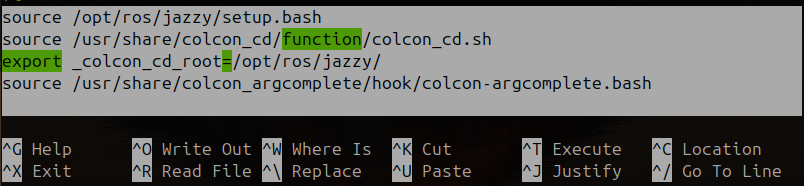
With all the above added to the `.bashrc` file, the colcon environment and functions will be automatically activated whenever you open a new terminal as well as automatic sourcing of the ros-humble environment.
{% hint style="info" %}
To learn more about colcon check the link to its documentation [here](https://docs.ros.org/en/jazzy/Tutorials/Beginner-Client-Libraries/Colcon-Tutorial.html)
{% endhint %}
you should see the following highlighted text (in the image below) at the bottom of your `.bashrc` file. Run this command:
```shellscript
sudo nano ~/.bashrc
```
### Intialize and Update rosdep
rosdep is a dependency management utility that can work with packages and external libraries. It is a command line utility for identifying and installing dependencies to build or install a package.
It is most often invoked before before building a package with colcon. It will basiclally download and installing the necessary dependencies a specified in the `package.xml`file so you don't have to manually install each dependencies again.
**rosdep** was already installed when you ran the `sudo apt install ros-dev-tools` command previously.
{% hint style="info" %}
To learn more about rosdep check out its documentation [here](https://docs.ros.org/en/jazzy/Tutorials/Intermediate/Rosdep.html)
{% endhint %}
Follow the instructions below to instialize and update rosdep:
```shellscript
sudo apt update
```
```shellscript
sudo rosdep init
```
```shellscript
rosdep update
```
### Optional (Install Cyclone DDS)
If you would be using ROS2 for navigation and some other high speed data transfer, install and use the **Cyclone DDS** in place of the default **Fast DDS.**
```shellscript
sudo apt install ros-jazzy-rmw-cyclonedds-cpp
```
```shellscript
export RMW_IMPLEMENTATION=rmw_cyclonedds_cpp
```
```shellscript
echo "export RMW_IMPLEMENTATION=rmw_cyclonedds_cpp" >> ~/.bashrc
```
***
### Creating A ROS2 Workspace
***
* In the root folder of your PC (i.e the home directory), create a **ros workspace** folder. I would be using this workspace name - `ros-ws`.
```sh
mkdir -p ~/ros-ws/src
```
* change directory into the root **ros workspace** folder
```sh
cd ~/ros-ws
```
* build the **ros workspace** initially with colcon (while still in the root workspace folder)
```sh
colcon build
```
\
you should now see three other folders - **build**, **install**, and **log** - apart from the **src** folder already created earlier. Run `ls` to see them in terminal
* Let's setup automatic sourcing (optional) for the created workspace - `ros-ws`- in the `.bashrc` file so that it is automatically sourced whenever you open a new terminal. Run this in terminal:
```sh
echo "source ~/ros-ws/install/setup.bash" >> ~/.bashrc
```
### Test with helloworld package
* Open a new terminal (to auto source your ros2 environment and workspace) and cd into your ros workspace's **src** folder
```sh
cd ~/ros-ws/src
```
* Clone this [**helloworld\_ros2**](https://github.com/samuko-things/helloworld_ros2) package in the src folder
```sh
git clone https://github.com/samuko-things/helloworld_ros2.git
```
* Change directory into the root **ros workspace** folder
```sh
cd ~/ros-ws
```
* Optionally, run rosdep to install the nessary package dependencies specified in the package's `package.xml`file
```sh
rosdep install -i --from-path src --rosdistro humble -y
```
* Build the package with colcon
```sh
colcon build --symlink-install
```
* Open two seperate terminals. In one of the terminals, run the c++ talker node:
```sh
ros2 run helloworld_cpp talker
```
* In the other terminal, run a python listener node:
```sh
ros2 run helloworld_py listener
```